SME VMware-to-Hyper-V migration project madness

Inroduction

We will discuss the ridiculous decisions some bean-counting managers make when migrating their aging, small VMware deployments to the excellent, affordable Hyper-V solution, especially in a Microsoft ecosystem. I’d call it “FinOps gone wrong,” but it’s really a mix of stupidity, extreme bean-counting, and a lack of knowledge about a process they clearly shouldn’t influence. In other words, incompetence.

Everyone knows the reasons why these migrations happen. Customers do not appreciate being squeezed out like a lemon by a company that doesn’t respect their business and would rather you leave.

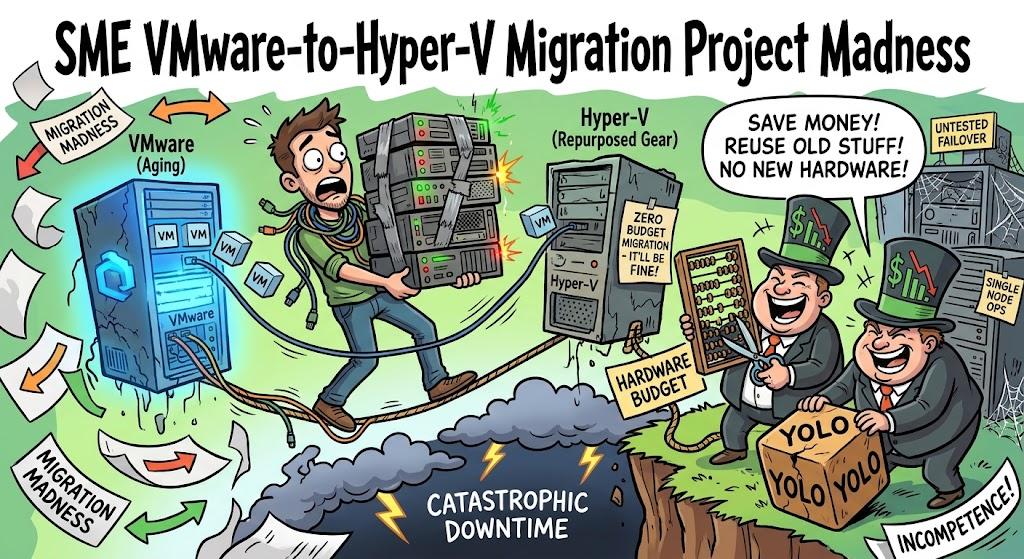
Let’s talk about a classic IT horror story. Management reads an article, looks at licensing costs, gets spooked by vendor changes, or, in Broadcom’s case, insulted and exploited. So they decide: “We’re migrating off VMware to Hyper-V. It’ll be easy, right? And hey, we don’t need to buy new hardware. We can repurpose the existing gear or squeeze it onto whatever’s lying around the server room.”
Stop right there. Hyper-V is a rock-solid hypervisor, and if you’re willing to leave the vCenter reservation behind, you will find it a flexible, capable solution. That is not the problem.

If you are planning a migration from VMware ESXi to Microsoft Hyper-V and management’s strategy can be summed up as “do it with what we already have; we are too cheap to buy spare or new hardware,” you are essentially being asked to defuse a bomb while blindfolded in a dark room because the exponentially safer approach will cost us some extra money. They are willing to risk their reputation, yours, and the livelihoods of their customers or business.

Why is this a bad idea

Let’s break down why trying to pull off a cluster migration on a shoestring hardware budget is a disaster waiting to happen, focusing on the twin horsemen of the infrastructure apocalypse: Single Node Ops and Untested Failover Clustering.

A high availability cluster must achieve its goal by providing redundancy and failover. You size them, configure them, and test them for that. Sizing is usually N-X (N-1, N-2, N-3) setups, depending on your cluster size and how many clusters you have. If you have multiple clusters and N-2, you might be able to carve out enough hardware without adding much risk to set up a new Hyper-V cluster. The bare minimum is two nodes if you want to validate and test your cluster and backups before taking it into production. If your idea is to leverage backups to save your proverbial behind, that is cool if you know they are good and you can restore, but it will hit hard because of downtime. This is not your best shot, A-game proposal. To add insult to injury, teams often make these decisions in 2-node clusters, where you can’t pull spare hardware from a larger pool. That option does not exist.

Penny Wise, Pound Foolish

In an ideal world, a migration project looks like this:

  • Build a shiny new target cluster (Hyper-V).
  • Thoroughly validate storage, networking, and cluster health.
  • Set up backups, test them, and recover test workloads.
  • Perform various failover scenario testing to validate your tests and assumptions. Shut down a controller, unplug a switch, a server node, etc.
  • Migrate workloads gracefully over time.
  • Decommission the old environment.

In the real world, way too often the following idea comes up: “Can’t you just wipe Node A of the old cluster, install Windows Server / Hyper-V on it, move a few VMs over, and repeat?”

No! Unless this is the only option left, outside of anything you can control, and your business is toast if you don’t, there is no sane reason to take these risks.

When you have zero spare hardware, you lose the single most important safety net in enterprise IT: headroom. You have no staging ground, no sandbox to test quirks, and no buffer when things inevitably go sideways during conversion.

The Danger of Single Node Operations

When management refuses to buy adequate hardware for a transition, you are forced into Single Node Operations right out of the gate. That is supported for last-man-standing scenarios, but it is NOT healthy, and you should not use it where it is not intended.

  • Where is your High Availability? A cluster requires a quorum. If you are stripping down nodes or running on a minimal configuration because you don’t have enough physical hosts to maintain N+1 redundancy during the migration phase, you aren’t running a cluster—you’re running a series of single points of failure duct-taped together.
  • The Resource Ceiling: Hyper-V and Failover Clustering are fantastic, but they aren’t magic. If you dump a massive chunk of your migrated workloads onto a single node because the rest of the target cluster hardware hasn’t arrived (or never will), you saturate memory, CPU queues, and IOPS. Maybe you are “lucky” and have enough headroom, but you still shouldn’t bet on it.
  • The Domino Effect: If that single overloaded node hiccups, crashes, or hits a resource exhaustion wall, your entire migrated workload goes down with it. There’s no automatic failover because the secondary node is either empty, unconfigured, or nonexistent.

Skipping Failover Clustering Validation and Other Checks Before Cutover

Hyper-V relies heavily on Failover Clustering for high availability, live migration, and resilient storage architectures (like Cluster Shared Volumes – CSVs). Setting up a rock-solid cluster requires rigorous pre-flight validation.

Normally, you run the built-in Cluster Validation Wizard to check storage, networking, drivers, and quorum configuration. Then test real-world failure scenarios before signing off on the production deployment. But when you are rushing a zero-budget migration under immense pressure, corners get cut:

  • Untested Storage Paths: Are your CSVs performing under load? Do you have proper multipathing (MPIO) configured, or is every I/O operation bottlenecked down a single sluggish path because nobody wanted to buy proper redundant switches or HBAs? You won’t find out until production hits it.
  • Network Partition Risks Live Migration: Live migration requires robust, dedicated cluster networks (ideally SMB Direct/RDMA or high-speed dedicated VLANs). On repurposed, constrained hardware, you’re often fighting for every megabit of bandwidth. Without proper validation testing, a live migration can easily stall, drop packets, or split-brain your cluster.
  • The Backup Fall-Safe Illusion: If you are skipping staging hardware and banking entirely on backups to bail you out if the migration craters, you better have verified those restores beforehand—otherwise, relying on cold backups mid-crisis will hammer the business with massive downtime.
  • The “Cutover and Pray” Methodology: Because there’s no spare hardware to run a parallel pilot, the cutover becomes a high-stakes, all-or-nothing event. You flip the switch, cross your fingers, and hope that the cluster validation errors you ignored don’t come back to bite you at 2:00 AM. Spoiler alert: they will.
  • To complete your migration, you need to flatten the remaining nodes, convert them to a cluster node, and add them to the new Hyper-V clusters. You have introduced risk into your existing solution, introduced risk into your new solution, and then created even more risk by wiping the remaining node(s) of the old solution.

The Bottom Line

Infrastructure migrations are complex enough when you do have the right tools, proper hardware headroom, and adequate time. Stripping away the hardware budget doesn’t save the company money. It defers the cost, trading upfront capital expenditure for a high risk of catastrophic downtime, burned-out sysadmins, emergency consulting fees, potential disaster recovery, reputational damage, and economic loss.

If management tells you to migrate a mission-critical VMware environment to Hyper-V with zero budget for new or spare hardware, show them the math on what a few hours of total downtime costs the business. Because sooner or later, running a cluster on a shoestring budget is going to snap. YOLO managers have no business making decisions about such technical matters. But economic risk management should be their business, and one would hope they don’t choose such a bad approach. Alas, I have heard and seen it way more than I would like to.

Veeam 100 Summit 2026 – Day One

Veeam 100 Summit 2026 – Day One

The Veeam 100 Summit 2026 is taking place in Lisbon, Portugal, as I write. On day one, I attended the Object First track. Object First was acquired by Veeam in Q1 2026. While I cannot disclose anything discussed here, I can share that these people are (very) ambitious. It was a technical, no-nonsense experience where I voiced my enthusiasm, wishes, and concerns in my usual feedback style. Direct, unapologetic but polite, with the occasional strong “force multiplier” wording.

That led to some interesting discussions with lead architect Alexey Vasilev and Anthony Cusimano at the evening networking event. The level of interaction didn’t disappoint, as we have come to expect at the Veeam 100 Summit 2026. Great first day.

Veeam Application Backup Repository (ABR) in v13.1 for network devices

Introduction

The release of Veeam Backup & Replication v13.1 introduces a significant new capability: the Application Backup Repository (ABR). Positioned as a secure landing zone for application‑generated backups, ABR brings hardened storage, snapshot lifecycle management, and immutability to workloads that generate backups of data or configurations to an NFS share. Databases and network devices come to mind and are mentioned in the documentation here: Application Backup Repositories – Veeam Backup & Replication User Guide.

“Configuration data of network devices: firewall or switch configurations.”

These “backups” or exports traditionally operate outside Veeam’s agent‑based or hypervisor‑based protection models. But while ABR is a powerful addition, it’s important to understand where it truly fits and where it doesn’t. When I first read the blog posts from Michael Cade and Anthony Spiteri, my first use case were network and IoT devices as they both mention it.

In particular, the idea that “network devices and IoT systems” can directly use ABR is more theoretical than realistic for most devices. The majority of those devices do not have an NFS client to write to an NFS share directly. That said, we can leverage the Application Backup Repository to improve backup and recovery services to our (internal) customers.

This post gives you a clear, realistic overview.

What ABR Actually Is

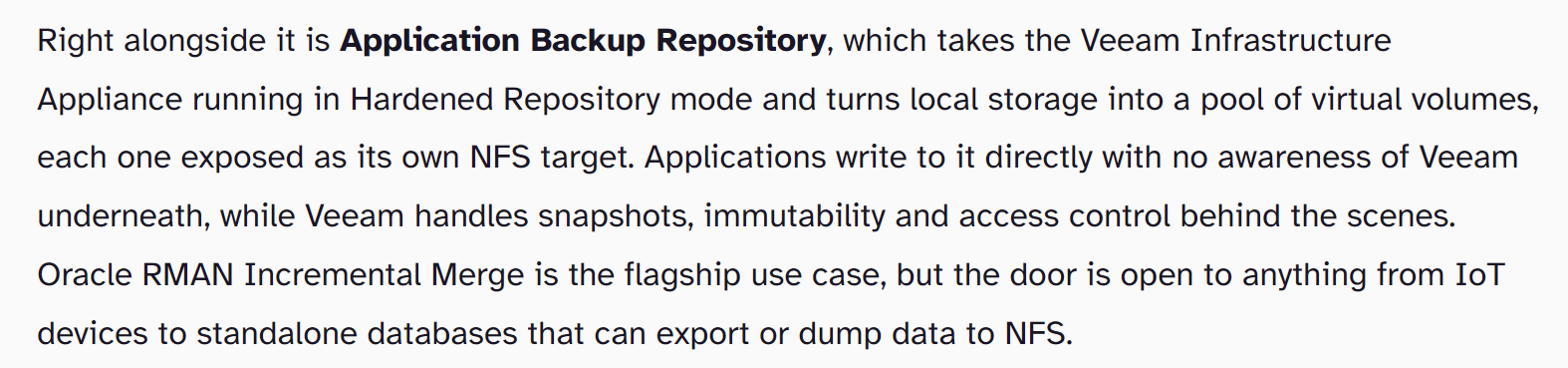
ABR is a feature of the Veeam Hardened Repository appliance. It exposes managed NFS volumes that applications can write their own backup files to. Each application receives its own isolated NFS export, and Veeam handles:

  • Snapshot creation and retention
  • Immutability enforcement
  • Instant rollback to any snapshot
  • Backup copy to secondary storage
  • Secure access control (Kerberos optional)

This allows application teams to continue using their native backup tools, such as RMAN, Backint, pg_dump, MongoDB dump, MySQL dump, custom scripts, while gaining Veeam’s hardened storage and recovery workflows.

Where ABR Shines

ABR is ideal for workloads that already support writing backup files to NFS:

  • Oracle RMAN Incremental Merge
  • SAP HANA Backint or file-based backups
  • PostgreSQL (pg_dump, WAL archiving)
  • MongoDB / MySQL / MariaDB dumps
  • Linux-based application exports
  • DevOps pipelines writing artifacts to NFS

These workloads benefit from ABR’s snapshot rollback, immutability, and backup copy integration without changing their native backup processes.

Network appliances and IoT device limitation

When it comes to most network appliances and IoT devices we are confronted with the limitation that they cannot write to NFS as they lack:

  • an NFS client
  • POSIX-compliant file handling
  • kernel-level NFS support
  • secure session handling (Kerberos, AUTH_SYS)

Typical network gear supports:

  • TFTP
  • FTP / FTPS
  • SFTP / SCP
  • HTTPS API upload
  • Proprietary backup formats

Typical IoT devices support:

  • local flash storage
  • MQTT / HTTP upload
  • cloud sync
  • proprietary export formats

NFS is almost never supported. So while ABR can technically accept NFS writes from any capable device, the practical reality is that network and IoT devices will not use ABR directly. This is something to keep in mind.

A Practical Workaround: How to Still Protect Network & IoT Backups with ABR

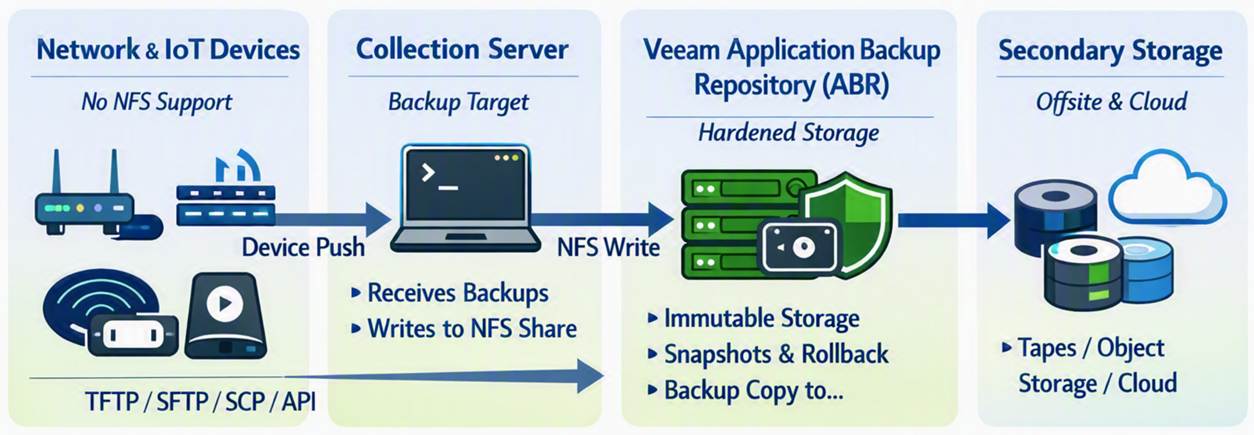
Even though network/IoT devices cannot write directly to NFS, you can still protect their backups using ABR by introducing a simple intermediary.

Workflow

  • Network/IoT device exports its backup (TFTP, SFTP, SCP, API, etc.)
  • A Linux server or automation node collects these backups
  • That server or servers write(s) the collected files into the ABR NFS share
  • Veeam handles snapshots, immutability, and backup copy from ABR

Benefits

  • Hardened storage for device backups
  • Snapshot rollback
  • Immutability
  • Backup copy to secondary storage
  • No unprotected local storage
  • This is the realistic way to use ABR for network gear and IoT systems.

Pricing

Well, it could work out to be cheaper than a NAS license for Veeam, but maybe not if you only store config file backups on there. I mean 1TB goes a long way for config backups only.

That said, in both cases you pay some money to have additional Veeam capabilities and immutability with granular and backup admin-managed recovery options. That might be the reason you want it over just backing up one or more virtual machines with the network appliance and IoT device backups on it. Think about it, a backup admin can provide a network engineer with a secured download of an encrypted zip at zero-dark-thirty in the morning without needing to restore files from a virtual machine, which might require a recovery key etc. Does that fit your security rules? Maybe, maybe not. But that is up to management to decide when they are down an extra 6 hours waiting for the file(s) from inside the Virtual Machine to be restored.

Conclusion

The Application Backup Repository is one of the most interestingl additions to Veeam v13.1, especially for enterprise databases and Linux-based applications that already support NFS. It brings hardened storage, immutability, and snapshot-driven recovery to workloads that previously lived outside Veeam’s ecosystem.

However, ABR is not a direct backup target for most network devices or IoT as far as I can see. These devices simply do not support NFS. The good news: with a lightweight collection server acting as an intermediary, you can still bring their backups into ABR and benefit from its security and lifecycle management.

ABR is powerful — but only when used where it actually fits. All this is lab and theory, it is early days yet and I am sharing my thinking process out loud with you. Nothing more, nothing less.

How to open a root shell on the Veeam Software or Infrastructure Appliance

Introduction

Veeam’s Software Appliance (VSA) and Infrastructure Appliance are hardened by design out of the box. They’re secured, protected, consistent, and predictable, but they’re also unapologetically locked down. There is no SSH, no shell, no root, no sudo. Everything is protected via requests and explicit approvals.

That’s good for security. But it also means you need to understand the actual workflow for getting shell access, especially root access, when you might need it.

This post walks through the real‑world process, the UI flow, the approval logic, and the operational pitfalls. We’ll even cover the “I disabled the web console and need to fix that” scenario.

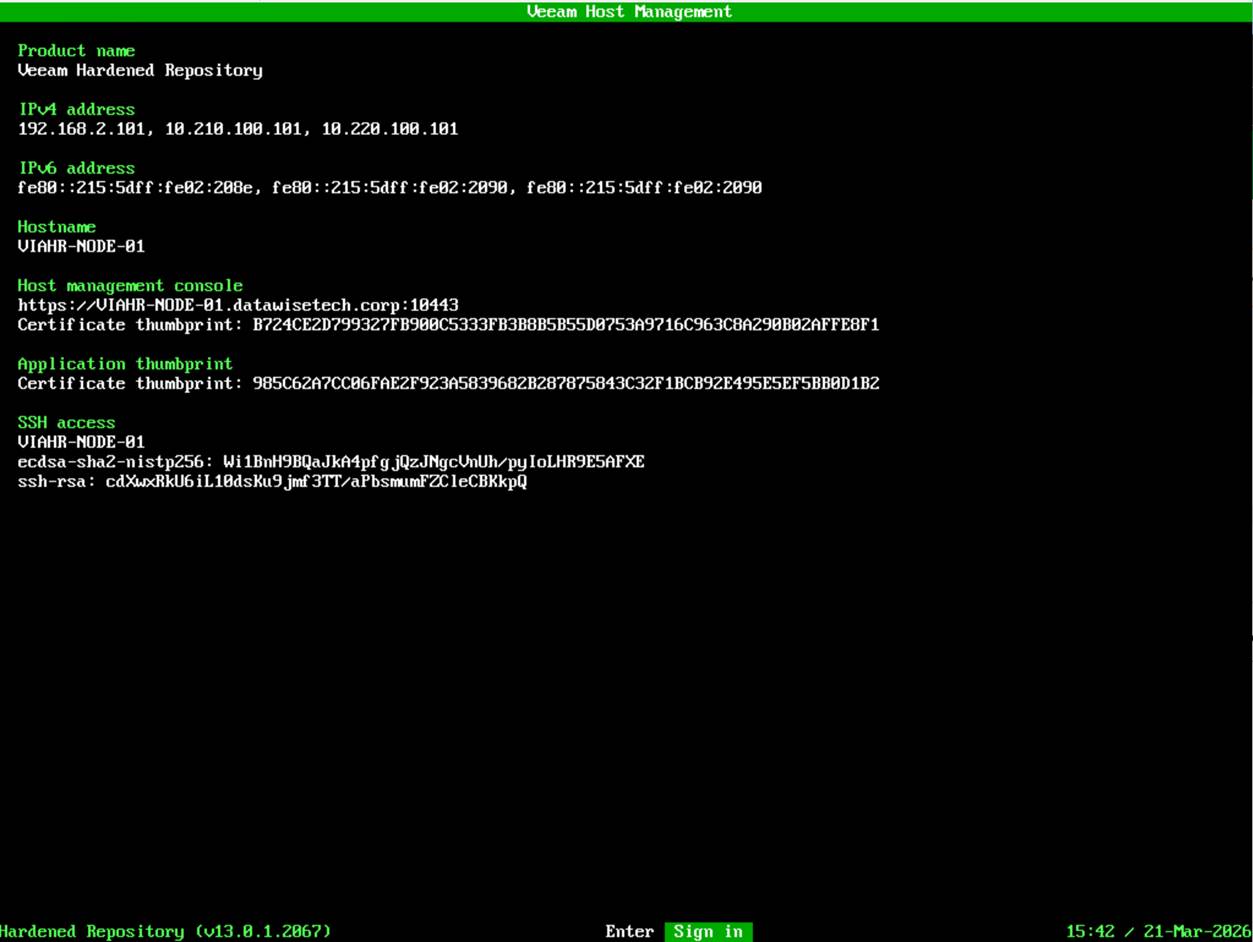
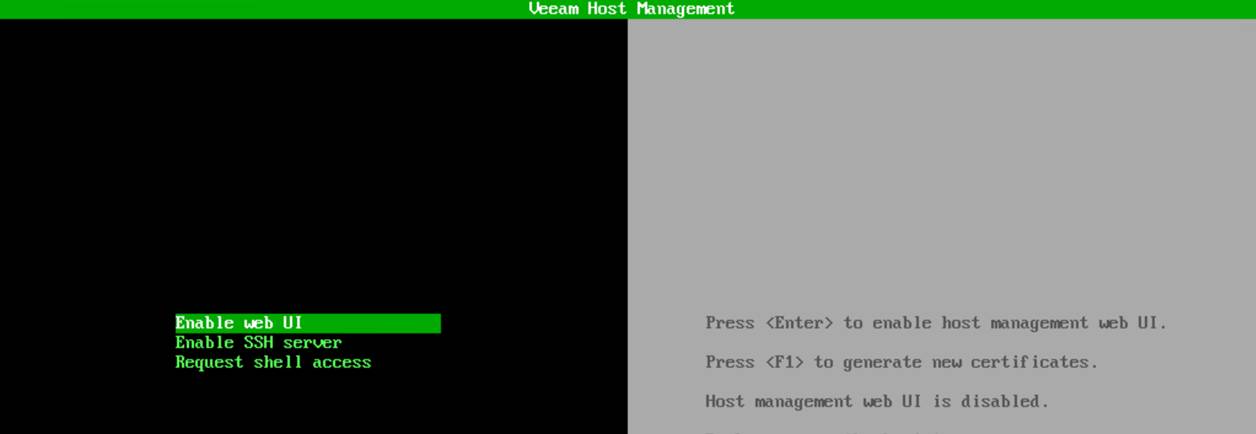
There are two ways to get SSH access. First, there is the Veeam Host Management console locally on the machine, the one that is available at first boot. After configuration, you will also have access via the web host management console over port 10443.

How to get root access?

Root access can be obtained through 3 pathways that are essentially the same. The first two are again the Veeam Host Management console, locally on the machine, and the web host management console on port 10443. Once you have SSH access, you can request root access via the Veeam Host management console over SSH as well. You can also restrict access via these interfaces.

Note

I also enable the security officer option in the lab. That can indeed be annoying during testing, but I like to train with the tools I will use when it’s for real. You learn and operate under the same restrictions as in production and, yes, suffer the same frustrations at times. That is the price of security.

The local Veeam Host Management console

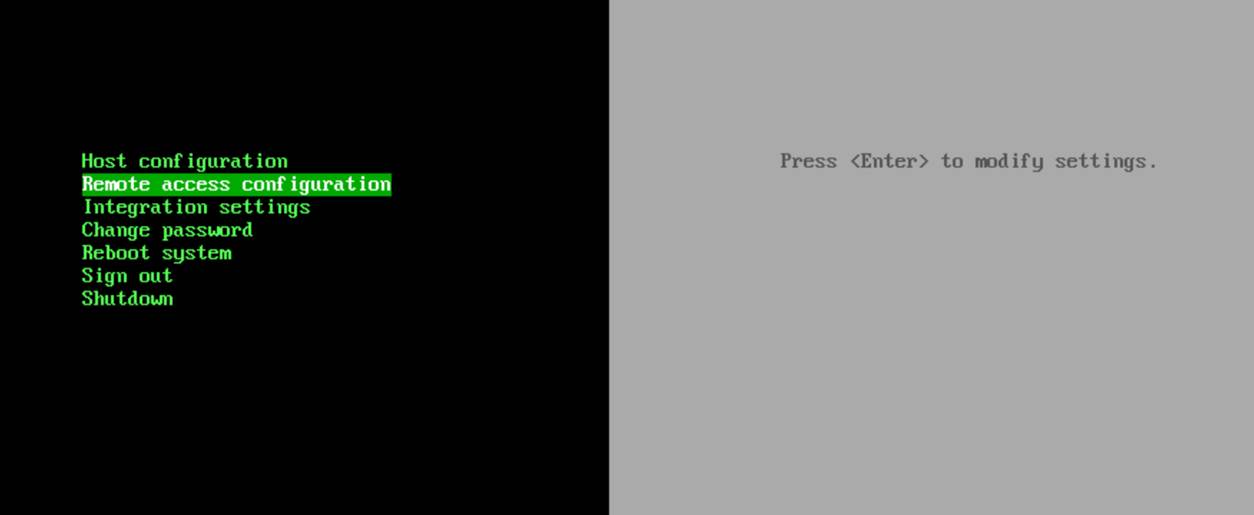
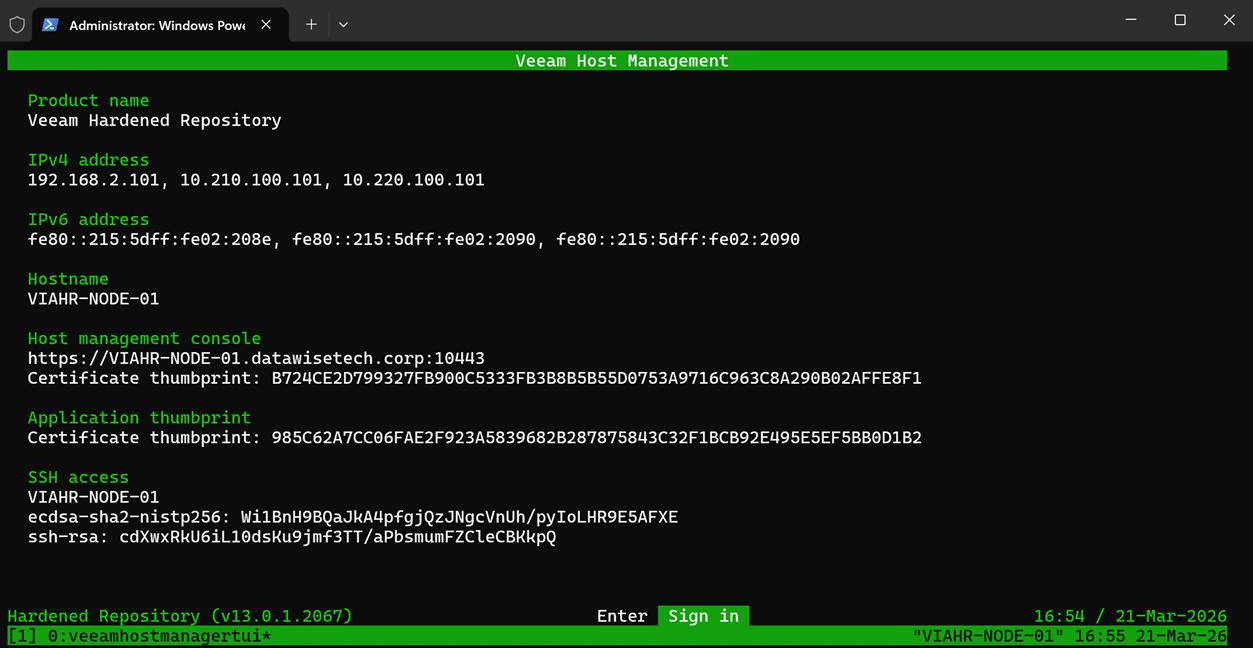
At your appliance console, select Sign In.

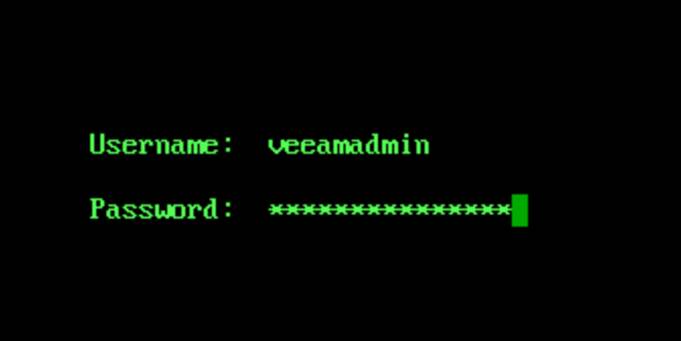
Enter your username and password and hit ENTER.

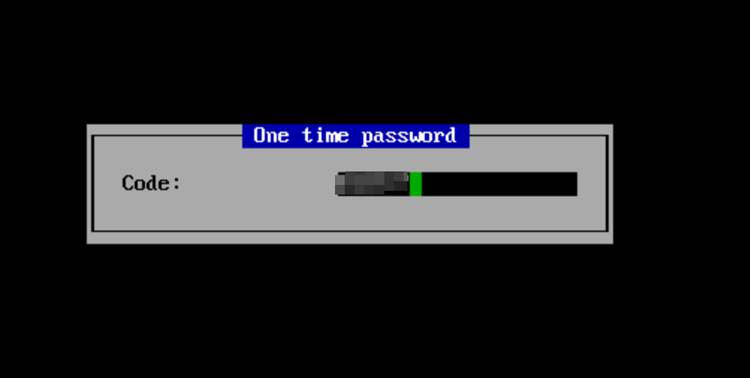
When prompted, enter your OTP to login.

From that point on, everything you need lives under the Remote Access configuration.

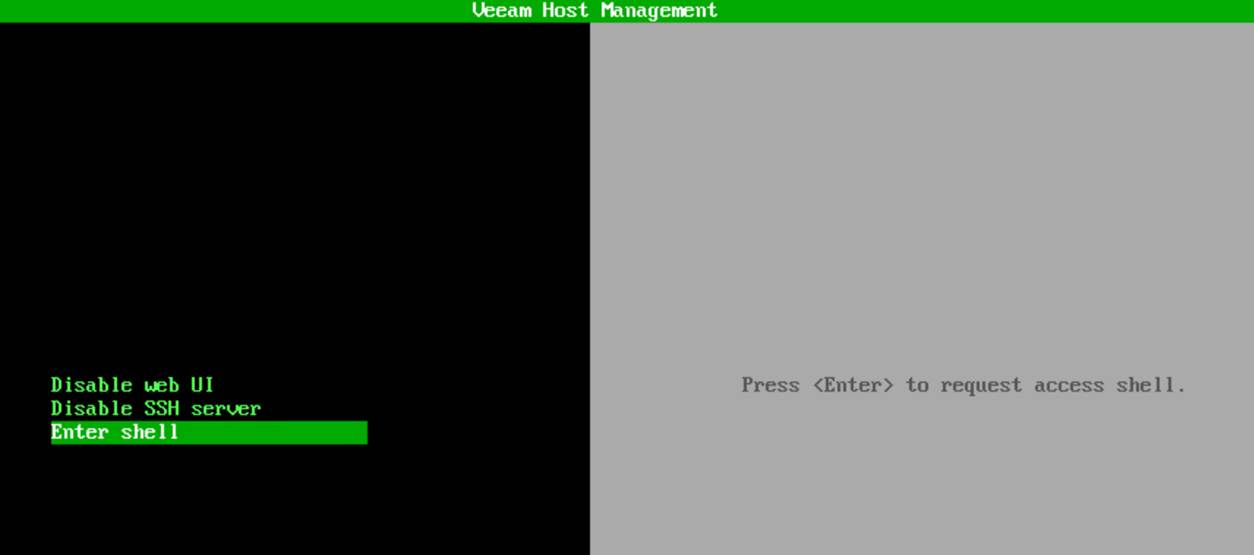
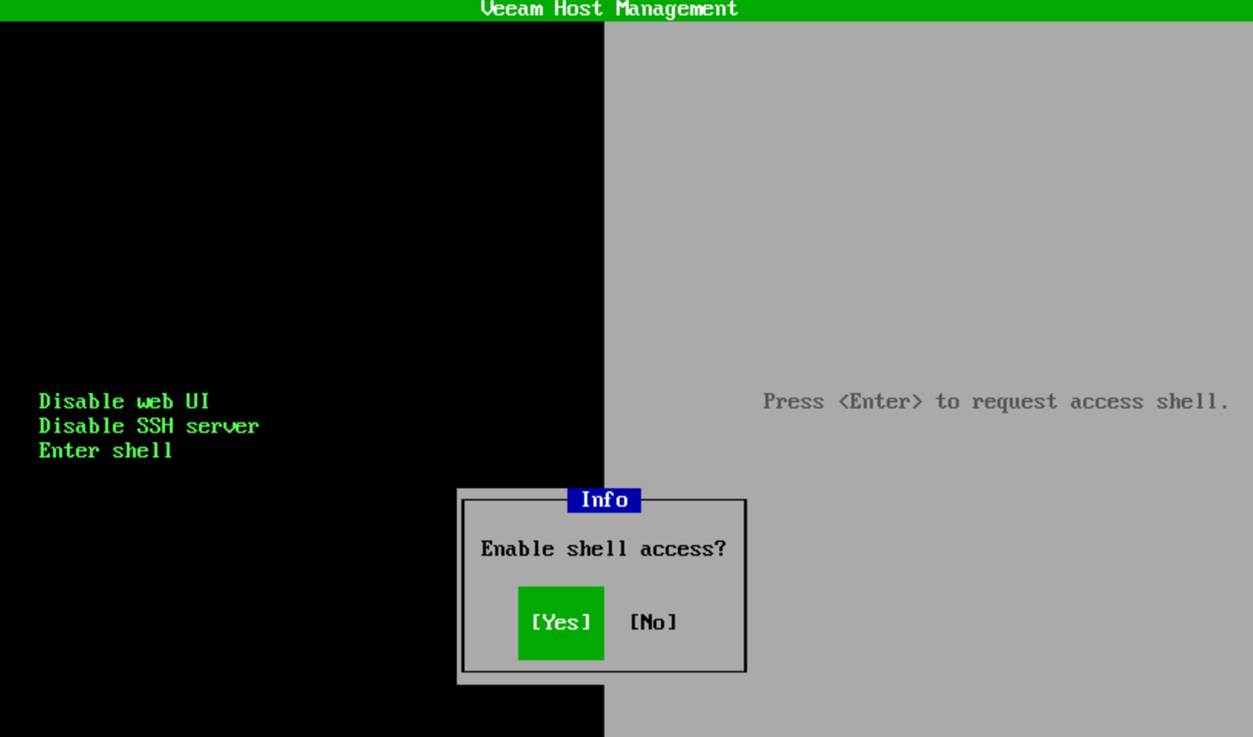
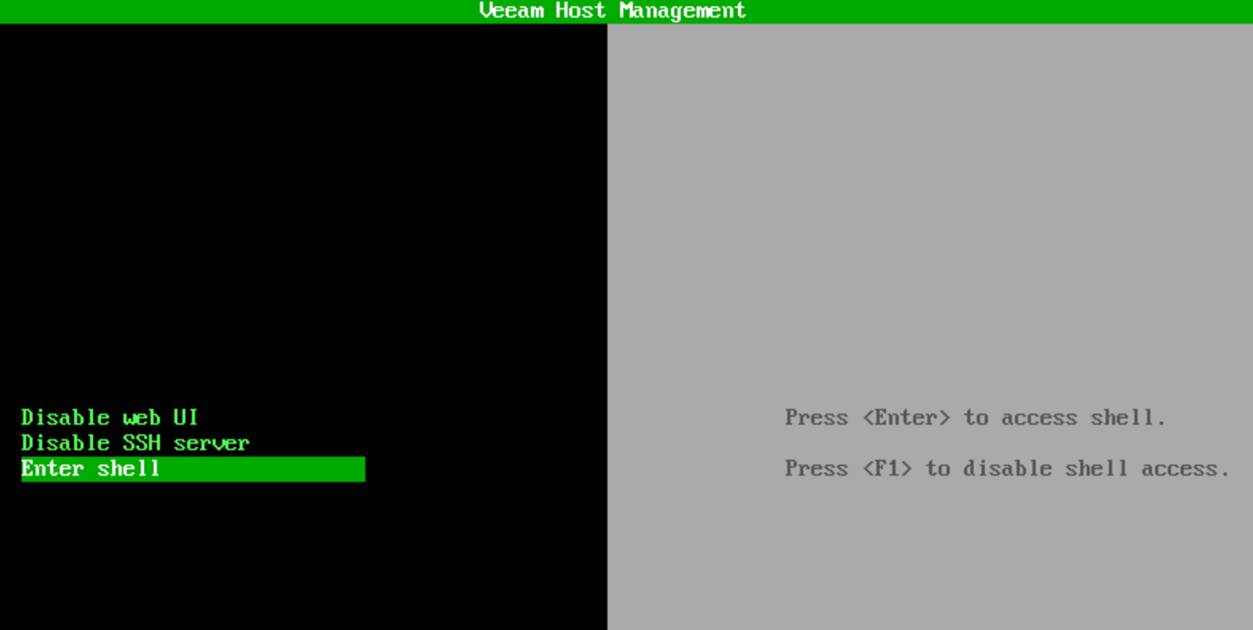
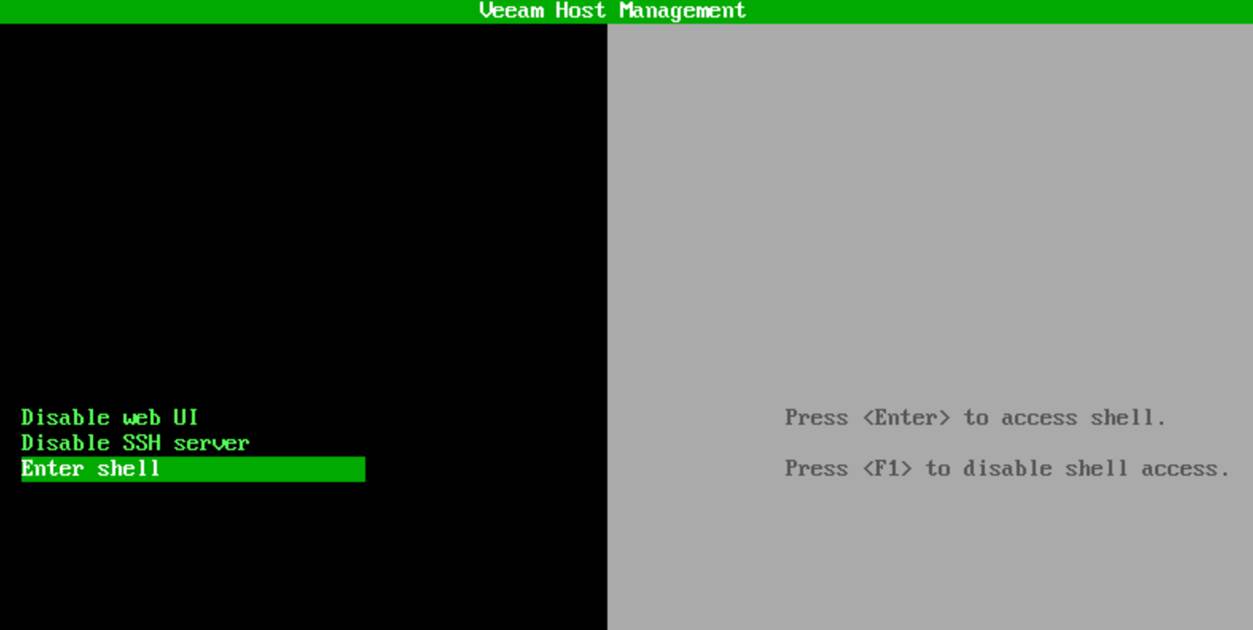
To request shell access, you choose Enter shell.

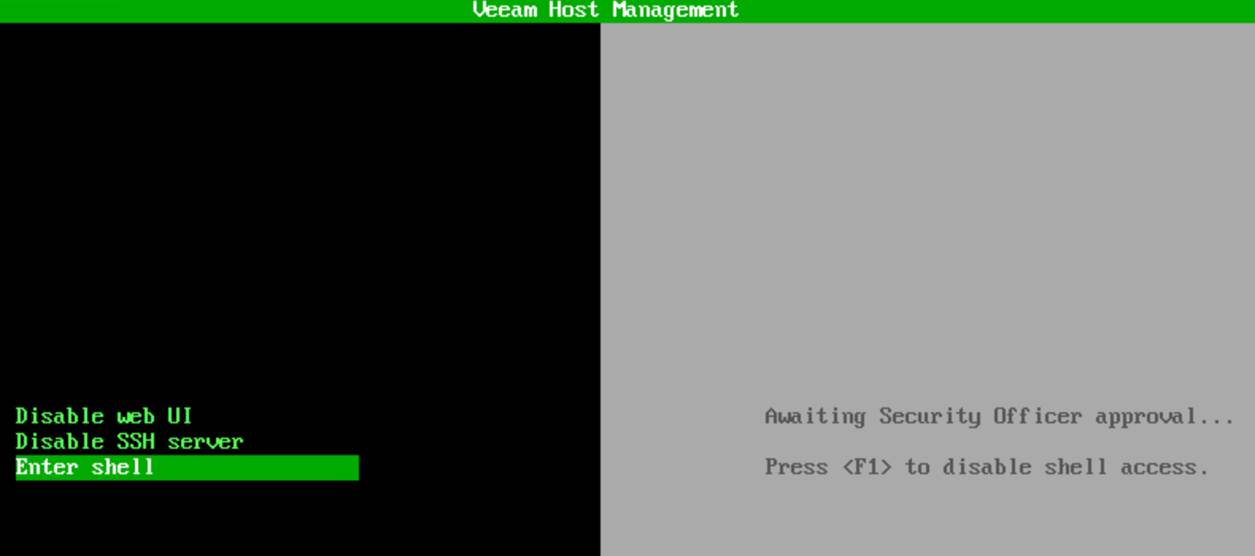
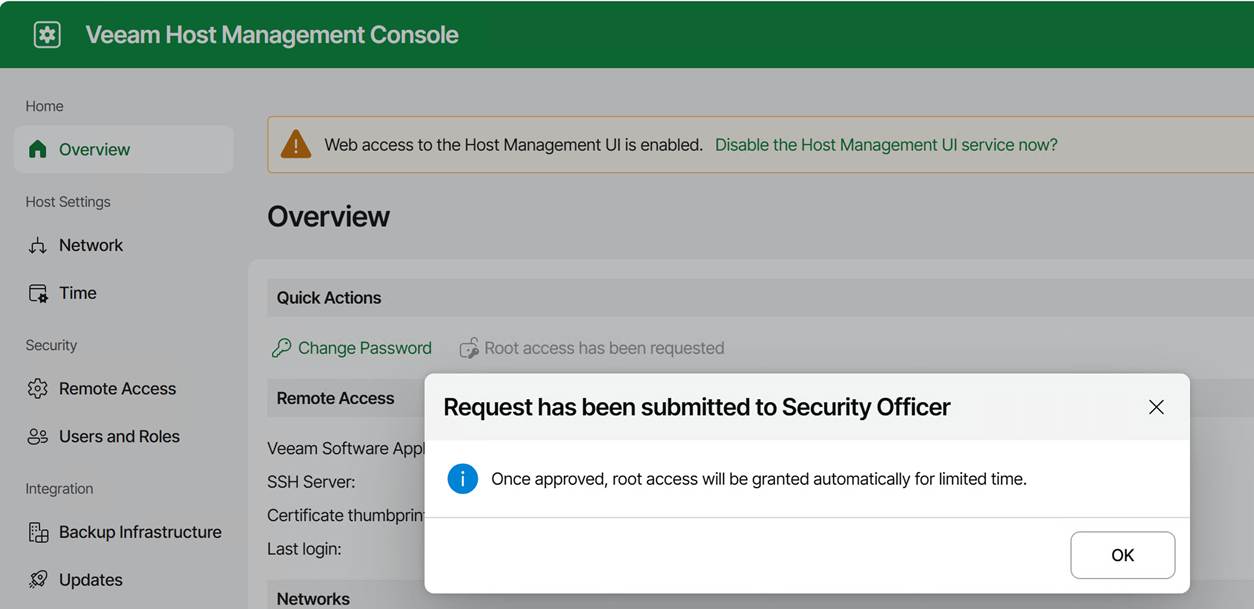
As mentioned, we have a security officer, so approval must be granted by that person.

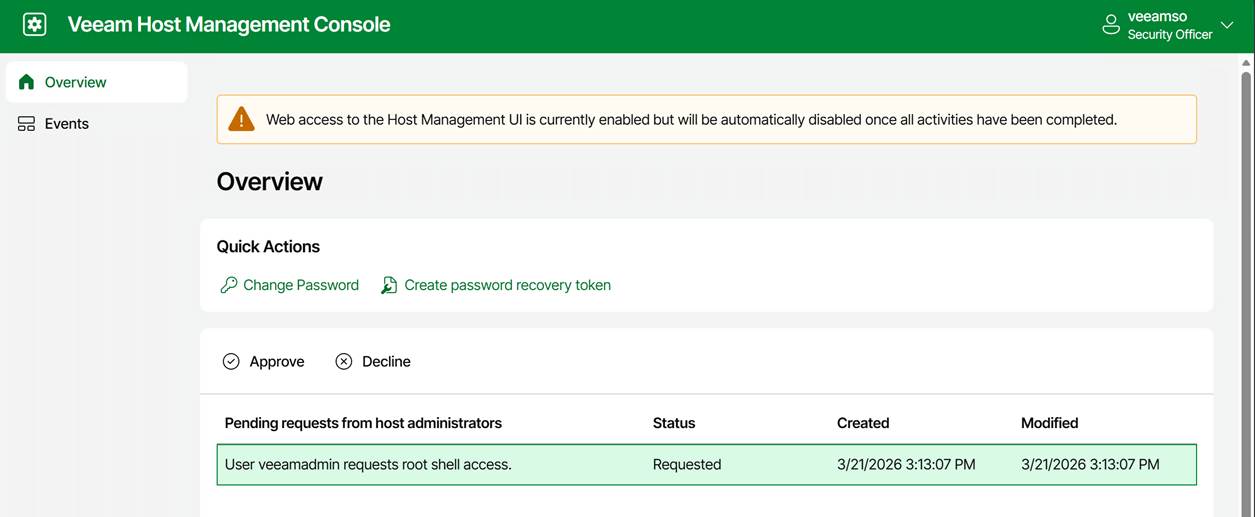
The security officer can now approve or decline your request.

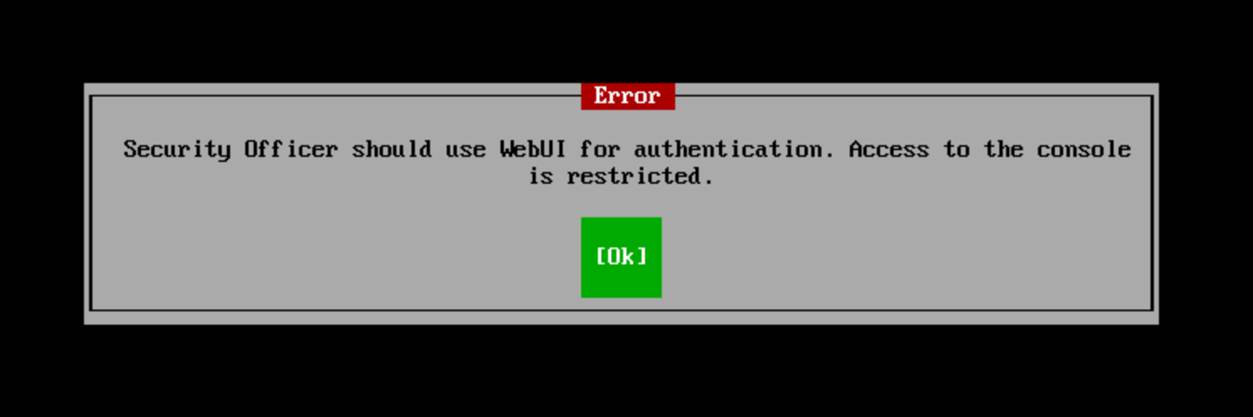
FYI: the security officer sign-in is only available via the web console!

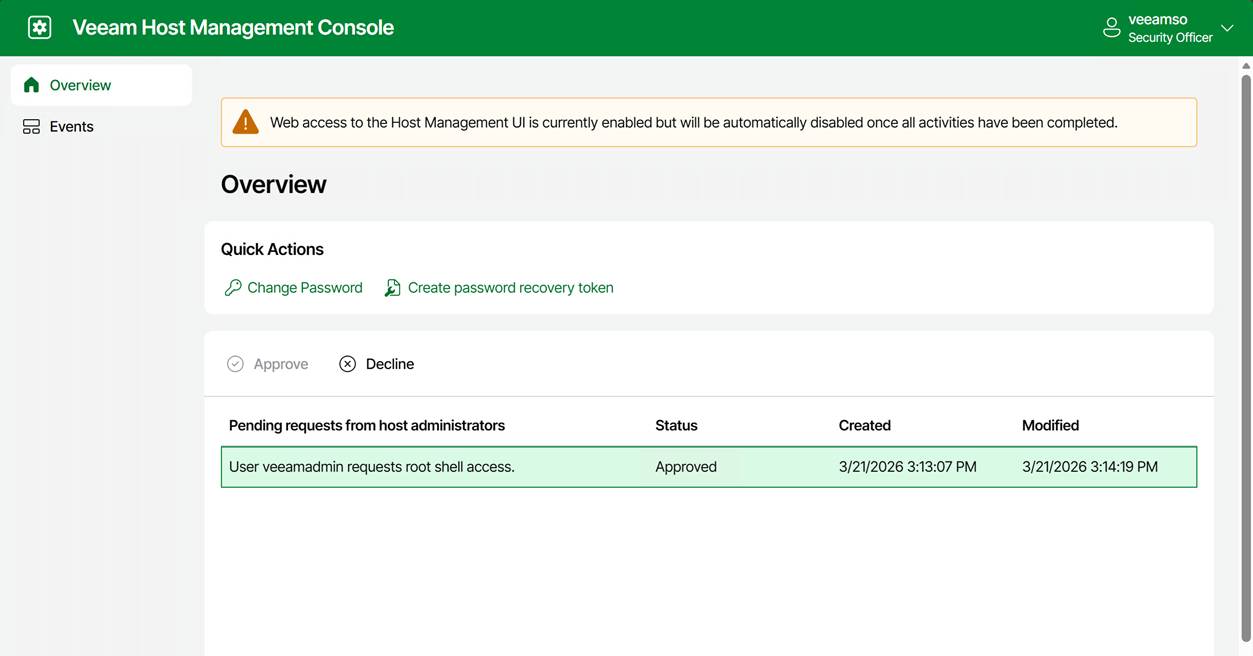
Note that the entry for the approved request does not disappear. The security officer can decline it at any moment. For example, when you notify the security officer that you have completed your work. If not, it will expire after 8 hours.

Anyway, the console message changed to “Press <Enter> to access shell” and “Press <F1> to disable shell access.”

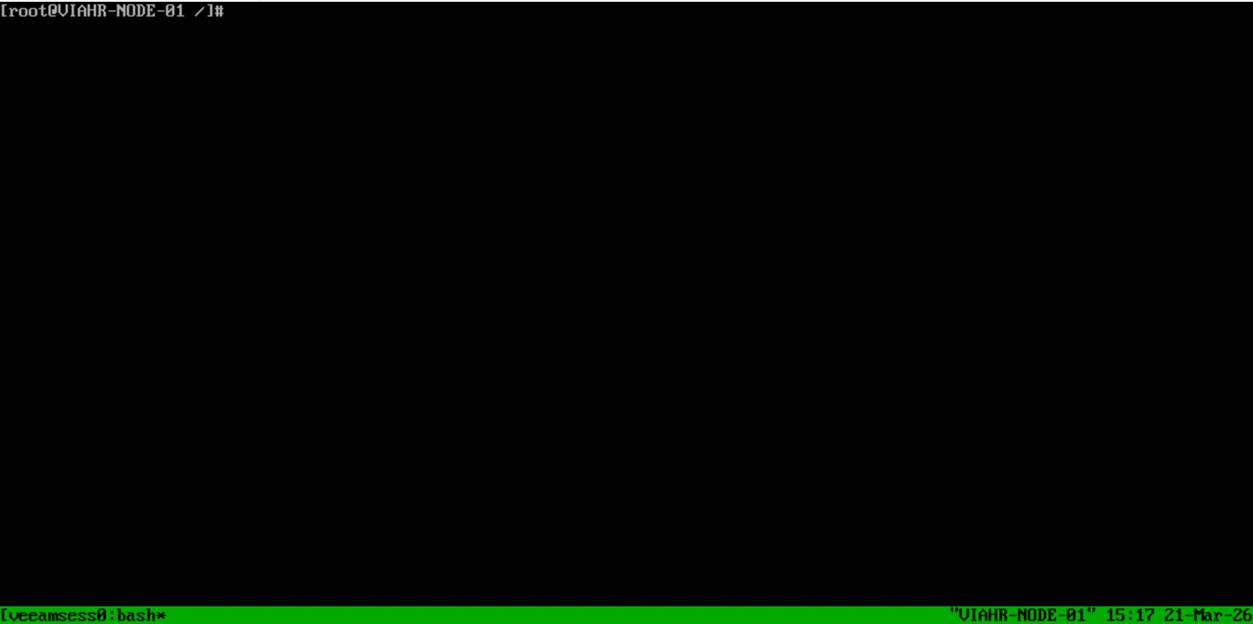
Hit ENTER, and you have shell access with root privileges.

Note that this root shell access is:

  • Time‑limited / non‑persistent
  • Audited
  • The only supported escalation path

Enabling root shell access via the web host management UI

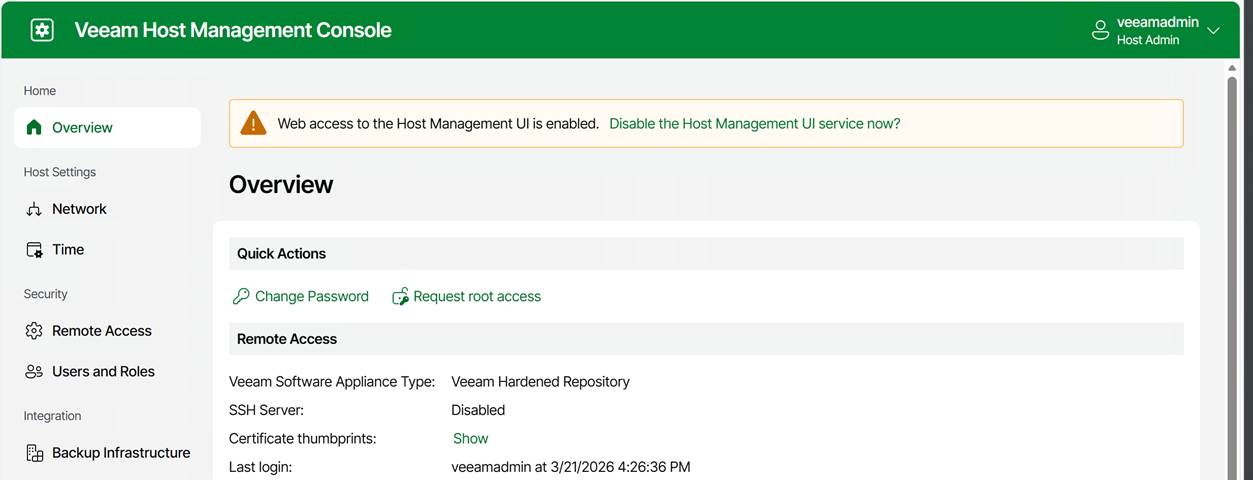
Navigate to the IP address or the FQDN of your appliance over port 10443 and log in.

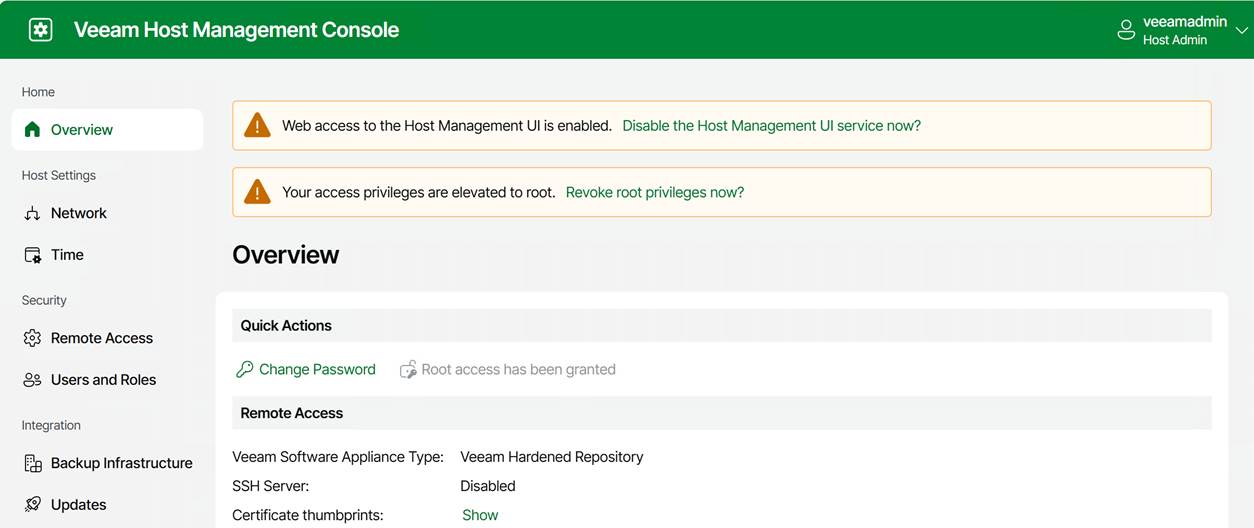
Under Overview, you can request root access. Again, this triggers the security officer approval workflow.

Once approved, a warning is displayed indicating that access privileges have been elevated to root. Note that you can revoke these yourself at any time.

Once approved, the TUI will allow you to open a temporary, audited root shell.

Once shell access is approved, you can:

  • Choose Enter shell in the TUI on the physical or virtual console
  • or enable SSH and log in remotely

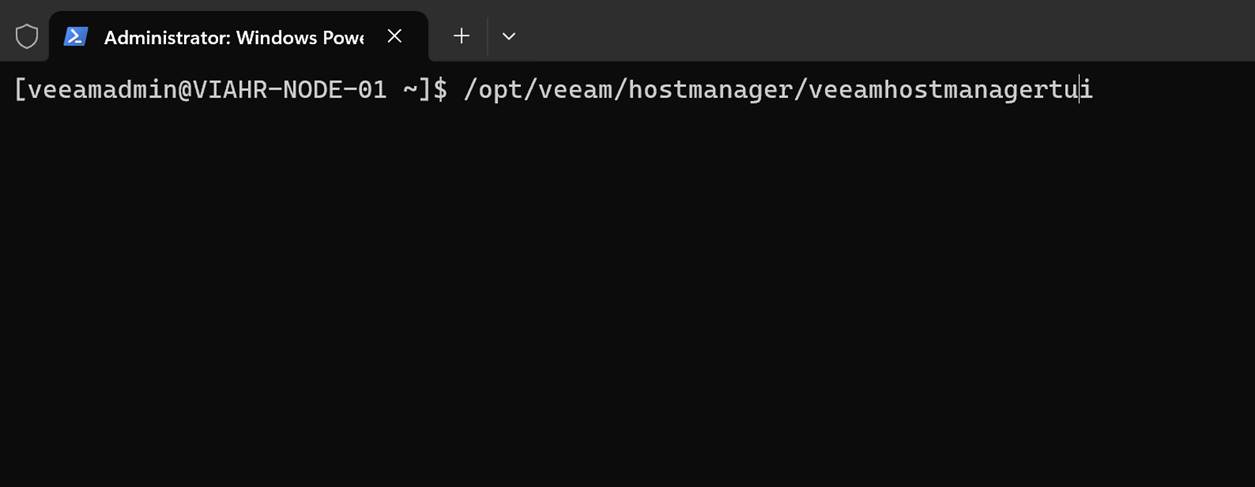
Note that you always authenticate as the Host Administrator, not root. Dropping into the shell is always as root. When logged in via SSH, you do not use sudo or su to become root. You have to launch the TUI manually. Just run:

/opt/veeam/hostmanager/veeamhostmanagertui

That is useful when you want to activate an already-approved root shell without returning to the physical or virtual console.

As you can see, you have the same interface and have to sign in again. You can then enter the shell only if approval has already been granted; otherwise, you’ll have to wait for your security officer to approve your request. For people without access to the physical or virtual console, requesting SSH access in combination with root shell access is the only option. SSH alone will never get you to root. Remember that. Because:

  • root login is disabled
  • SSH root login is disabled
  • sudo is restricted
  • No direct escalation paths exist outside the TUI, making it the only supported privilege‑escalation mechanism.

Turning off the host management web UI

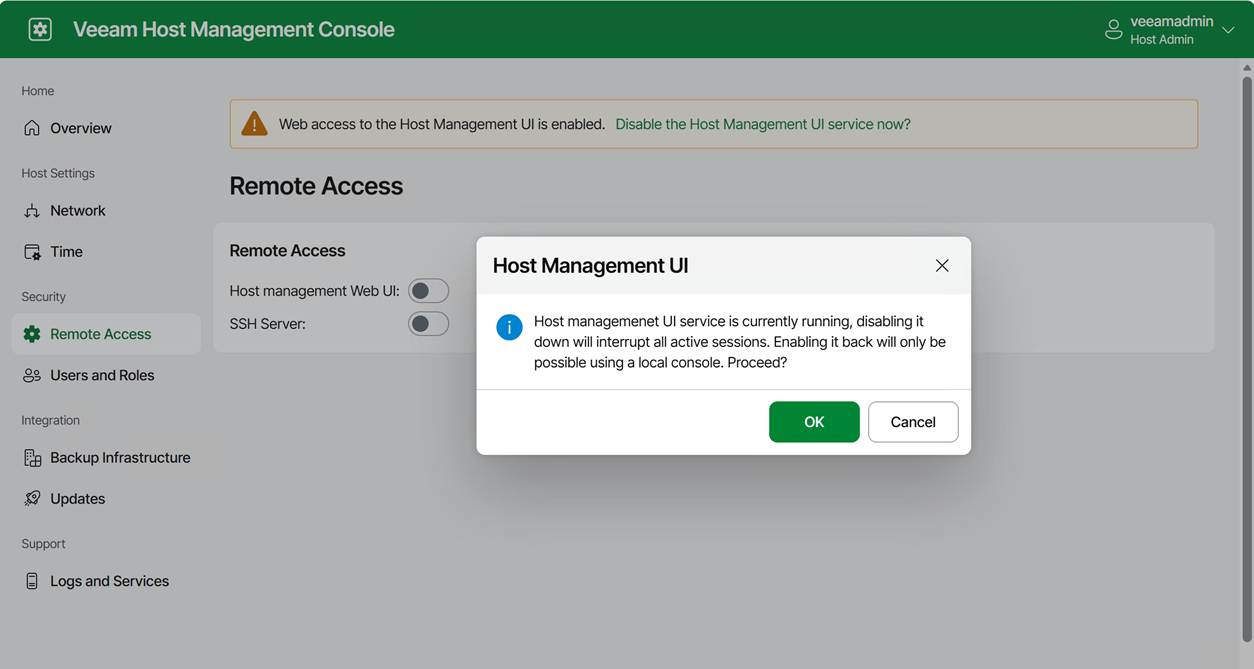
The appliance also lets you turn off the host management web UI. Sure, it might sound great for even further hardening, but it comes with an ⚠️ Important catch: turning off the host management web UI can Lock You Out (unless you have physical or virtual console access).

If you disable the web console and you do not have shell access or SSH enabled, the only way back in is through the hypervisor VM console. The physical or virtual console is your last‑resort access path. If you lose that, you have basically lost the appliance if all other options are disabled.

Some operational tips

Use root access with care and only when needed

I hope this is self-explanatory.

Use the web host management console & enable SSH on demand

We handle normal operations via the web consoles and the full console. When SSH is needed, request it.

Never turn off the web console unless you have guaranteed VM console access

If your hypervisor is managed by someone else, for example, think twice. Silos and multiple layers of communication and responsibilities are productivity, efficiency, and support-killing factors in way too many “enterprise”- grade environments. For real people, “enterprise IT” is not the badge of quality and efficiency many think it is; quite the contrary.

The Security Officer must be on call

When you tie actions to a security officer, ensure they are on call and kept informed. Make sure these are people with a clue, not just someone who approves anything without knowing what or why. Also, make sure they are very well aware of what normal backup and recovery operations require and what constitutes an exceptional but valid request. Otherwise, you can’t approve shell or root requests when you need them, or everything gets approved. The technology is only as good as the people and the processes.

Conclusion

While root shell access may be needed in a real-world environment, it should be used only when necessary and with great care. That is why I advise you to enable the security officer in production. And if you are like me, use the security officer feature in labs to make sure you learn and know the processes where this approval is required. How to Open a Root Shell on the Veeam Software or Infrastructure Appliance is also documented on Veeam Backup Enterprise Manager Guide